 Notes, Tips and Tricks
                        for INFactoryW+ and/or INFactory2003 users
First As already written INFactory is a program in process so the version herewith is the
last version available but not the final version of the program.
Take note that, therefore, the program must be considered still in Beta version because
i need much more time and devices to perform all test in any possible conditions..
Note To make INFactory equally easy to use as some MS i cannot avoid to ask the user to
create the dll/ocx Tree SubDirs to enable the program to work authomatically finding
all the needed files into predefined paths.
This creates the problem about how to find the files requested.
Last Trick for INFactory2003
Infactory is an installer for a single standalone NSBasic Program but sometime the
developers use the 'Chain' instruction to joint several .nsb modules into a single
program. In this case INFactory may fail to work as the program see one .nsb file
only. Owing to an user query i found this workaround for the INFactory 2003 vers.
Select 'ADVANCED' tab option, thence fill the first input screen as usually but do not
select the Program Shortcut option. Go to the second screen using Next and here go to
the third extentions Group. Type herein again the .nsb extention thence click on ? label and using ComboBox and the
Add button select the Apllication path again for the nsb files.
Press now the button Other Filesand you will see available in the list all the others nsb
files also, that you can add to the project files' list as usual by a click.
This will allow you to get an .inf file to create CAB that will include also all the .nsb modules
you need.
This is a workaround only. With the next upgrade i will try to include it in the program
directly reinstating also the possibility to use Shortcut option also.
HOW TO GET THE CPU DEPENDENT FILES YOU NEED
General Rules
All the files that you used to create the program of yours for which you wish to create the
installer are, without any doubt, somewhere in your HD or CE device so it will not so
difficult to find and copy them into the relative Sub Dir of the INFactoryW+ program.
This is all you need to create a single CAB installer for the O.S. and CPU of the device
on which you developed and tested your program.(the ALL devices and ALL cpues
options of INFactory cannot be used in this case)If you wish instead to create a multi CAB installer (i.e to allow installation of your nsb
program on other type of devices and or CPUes) you need to find also the equivalentfiles for all the operating system and CPUs that you wish to use.
We can make an example using a set of files that should be stored into each Subdir.
These files are the ones used by NSB Runtime.
If you installed the Runtime set on your device (that may be a PocketPC powered by an
ARM cpu) you can find under C:\Program Files\Microsoft ActiveSync\Runtime orsimilar path also the files Cab for PocketPC Mips and SH3 and also the ones for the
PalmPC old version. To extract files fron the Cabs you may use an appropriate application
that will allow you to get the sets of files you need.
You can try to use WinZip also to perform this job manually.
Doing this you will see a view as above. The files' names you see are the internal CAB
names but the file itself has not been compressed and modified so you have only to
know the real name and rename the file accordingly.
(example : MSCEFile.050 may be easily renamed as MSCEFile.dll and so on )
The same procedure may be applied to the HPC runtime if you installed and use it for
your programs.
Another useful source for these files is eVBtools SDK files i you use or installed them
im your computer. Check the relative folders and you will find many of the file you need
already stored under the relative O:S. and CPUs folders as shown below
If instead you wish to extract files from an exe installer the work will be more complex.
You have anyway to install it to access the CAB or the Files therein so, remove your
CE device(s) from the craddle to avoid connection with the Desk computer, thence
run the exe file.
The Install Manager will prompt you that the installation will be completed when the
correct device will be available showing a message like this one
.
Ignore the prompt and close it.
Go now to the same path mentioned above.
Even if the installation has not been completed you will find on the HD the CAB files extractedfrom the exe installer. You may act as above to get an copy the required files.
As soon as you done this delete the full folder if you do not wish to complete installation.
This will cause an Error later when you will connect your device but it is correct as you
deleted the files to install. Ignore error and go over.
You can download the eVB runtime for Mobile2003 HERE
You can download HERE the NSBruntime or FAT NSBruntme for ppc/hpc
.
You are now ready to use any INFactory program's versions
DISCLAIMER, LICENCES AND OTHER THINGS.
The installer package that you will create will distribute files that may freely
distributed anyway do not forget that the Runtime file that you can freely download
when installed show that the items and their use are subject to NSB Licence.
NSB Licence text that is available into my zipped distribution file.
It could be correct to add almost a reference that licence concerning the files that
you are distributing but by your own installer. This reference may be also included
into your own lecence of use.
To do this is quite easy if you will use ezsetup.exe to get the final result otherwise
if you use the Zip program to join all the needed files you can include the relative
reference into the zipped package.UNINSTALLATION NOTE
To unistall the the programs simply delete its main folder and all sub directories.
As usually nothing will be written or changed in your Registry.
To unistall the nsb programs loaded using the installer you may use the 'unistall'
windows of your device.(INFactory loading will be fully uninstalled.
Be aware that if, along with your program the runtime also has been installed others
programs may have some problem to run. (find on line RegFix program to solve this
solve this problem caused by an unsolved bug of the Microsoft O.S.
USE NOTE
The customized install code will be stored into the Sub Dir ResultFile and if
you need to create a new installation package with the same name of the previous
one but with changed features please before delete the old files otherwise you will
get an error.
 Notes, Tips and Tricks
for INFactoryW+ and/or INFactory2003 users
Notes, Tips and Tricks
for INFactoryW+ and/or INFactory2003 users 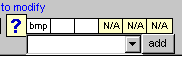 Type herein again the .nsb extention thence click on ? label and using ComboBox and the
Add button select the Apllication path again for the nsb files.
Press now the button Other Files and you will see available in the list all the others nsb
files also, that you can add to the project files' list as usual by a click.
This will allow you to get an .inf file to create CAB that will include also all the .nsb modules
you need.
This is a workaround only. With the next upgrade i will try to include it in the program
directly reinstating also the possibility to use Shortcut option also.
HOW TO GET THE CPU DEPENDENT FILES YOU NEED
General Rules
All the files that you used to create the program of yours for which you wish to create the
installer are, without any doubt, somewhere in your HD or CE device so it will not so
difficult to find and copy them into the relative Sub Dir of the INFactoryW+ program.
This is all you need to create a single CAB installer for the O.S. and CPU of the device
on which you developed and tested your program.(the ALL devices and ALL cpues
options of INFactory cannot be used in this case)
If you wish instead to create a multi CAB installer (i.e to allow installation of your nsb
program on other type of devices and or CPUes) you need to find also the equivalent
files for all the operating system and CPUs that you wish to use.
We can make an example using a set of files that should be stored into each Subdir.
These files are the ones used by NSB Runtime.
If you installed the Runtime set on your device (that may be a PocketPC powered by an
ARM cpu) you can find under C:\Program Files\Microsoft ActiveSync\Runtime or
similar path also the files Cab for PocketPC Mips and SH3 and also the ones for the
PalmPC old version. To extract files fron the Cabs you may use an appropriate application
that will allow you to get the sets of files you need.
You can try to use WinZip also to perform this job manually.
Type herein again the .nsb extention thence click on ? label and using ComboBox and the
Add button select the Apllication path again for the nsb files.
Press now the button Other Files and you will see available in the list all the others nsb
files also, that you can add to the project files' list as usual by a click.
This will allow you to get an .inf file to create CAB that will include also all the .nsb modules
you need.
This is a workaround only. With the next upgrade i will try to include it in the program
directly reinstating also the possibility to use Shortcut option also.
HOW TO GET THE CPU DEPENDENT FILES YOU NEED
General Rules
All the files that you used to create the program of yours for which you wish to create the
installer are, without any doubt, somewhere in your HD or CE device so it will not so
difficult to find and copy them into the relative Sub Dir of the INFactoryW+ program.
This is all you need to create a single CAB installer for the O.S. and CPU of the device
on which you developed and tested your program.(the ALL devices and ALL cpues
options of INFactory cannot be used in this case)
If you wish instead to create a multi CAB installer (i.e to allow installation of your nsb
program on other type of devices and or CPUes) you need to find also the equivalent
files for all the operating system and CPUs that you wish to use.
We can make an example using a set of files that should be stored into each Subdir.
These files are the ones used by NSB Runtime.
If you installed the Runtime set on your device (that may be a PocketPC powered by an
ARM cpu) you can find under C:\Program Files\Microsoft ActiveSync\Runtime or
similar path also the files Cab for PocketPC Mips and SH3 and also the ones for the
PalmPC old version. To extract files fron the Cabs you may use an appropriate application
that will allow you to get the sets of files you need.
You can try to use WinZip also to perform this job manually.
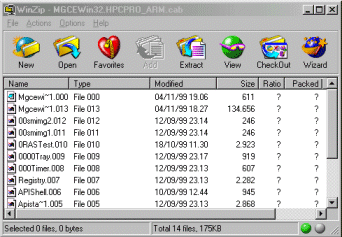 Doing this you will see a view as above. The files' names you see are the internal CAB
names but the file itself has not been compressed and modified so you have only to
know the real name and rename the file accordingly.
(example : MSCEFile.050 may be easily renamed as MSCEFile.dll and so on )
The same procedure may be applied to the HPC runtime if you installed and use it for
your programs.
Another useful source for these files is eVBtools SDK files i you use or installed them
im your computer. Check the relative folders and you will find many of the file you need
already stored under the relative O:S. and CPUs folders as shown below
Doing this you will see a view as above. The files' names you see are the internal CAB
names but the file itself has not been compressed and modified so you have only to
know the real name and rename the file accordingly.
(example : MSCEFile.050 may be easily renamed as MSCEFile.dll and so on )
The same procedure may be applied to the HPC runtime if you installed and use it for
your programs.
Another useful source for these files is eVBtools SDK files i you use or installed them
im your computer. Check the relative folders and you will find many of the file you need
already stored under the relative O:S. and CPUs folders as shown below
 If instead you wish to extract files from an exe installer the work will be more complex.
You have anyway to install it to access the CAB or the Files therein so, remove your
CE device(s) from the craddle to avoid connection with the Desk computer, thence
run the exe file.
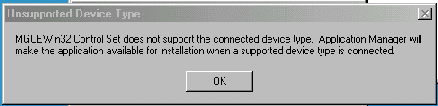
The Install Manager will prompt you that the installation will be completed when the
correct device will be available showing a message like this one
If instead you wish to extract files from an exe installer the work will be more complex.
You have anyway to install it to access the CAB or the Files therein so, remove your
CE device(s) from the craddle to avoid connection with the Desk computer, thence
run the exe file.
The Install Manager will prompt you that the installation will be completed when the
correct device will be available showing a message like this one
 .
Ignore the prompt and close it.
Go now to the same path mentioned above.
Even if the installation has not been completed you will find on the HD the CAB files extracted
from the exe installer. You may act as above to get an copy the required files.
As soon as you done this delete the full folder if you do not wish to complete installation.
This will cause an Error later when you will connect your device but it is correct as you
deleted the files to install. Ignore error and go over.
You can download the eVB runtime for Mobile2003 HERE
You can download HERE the NSBruntime or FAT NSBruntme for ppc/hpc
.
You are now ready to use any INFactory program's versions
DISCLAIMER, LICENCES AND OTHER THINGS.
The installer package that you will create will distribute files that may freely
distributed anyway do not forget that the Runtime file that you can freely download
when installed show that the items and their use are subject to NSB Licence.
NSB Licence text that is available into my zipped distribution file.
It could be correct to add almost a reference that licence concerning the files that
you are distributing but by your own installer. This reference may be also included
into your own lecence of use.
To do this is quite easy if you will use ezsetup.exe to get the final result otherwise
if you use the Zip program to join all the needed files you can include the relative
reference into the zipped package.
UNINSTALLATION NOTE
To unistall the the programs simply delete its main folder and all sub directories.
As usually nothing will be written or changed in your Registry.
To unistall the nsb programs loaded using the installer you may use the 'unistall'
windows of your device.(INFactory loading will be fully uninstalled.
Be aware that if, along with your program the runtime also has been installed others
programs may have some problem to run. (find on line RegFix program to solve this
solve this problem caused by an unsolved bug of the Microsoft O.S.
USE NOTE
The customized install code will be stored into the Sub Dir ResultFile and if
you need to create a new installation package with the same name of the previous
one but with changed features please before delete the old files otherwise you will
get an error.
.
Ignore the prompt and close it.
Go now to the same path mentioned above.
Even if the installation has not been completed you will find on the HD the CAB files extracted
from the exe installer. You may act as above to get an copy the required files.
As soon as you done this delete the full folder if you do not wish to complete installation.
This will cause an Error later when you will connect your device but it is correct as you
deleted the files to install. Ignore error and go over.
You can download the eVB runtime for Mobile2003 HERE
You can download HERE the NSBruntime or FAT NSBruntme for ppc/hpc
.
You are now ready to use any INFactory program's versions
DISCLAIMER, LICENCES AND OTHER THINGS.
The installer package that you will create will distribute files that may freely
distributed anyway do not forget that the Runtime file that you can freely download
when installed show that the items and their use are subject to NSB Licence.
NSB Licence text that is available into my zipped distribution file.
It could be correct to add almost a reference that licence concerning the files that
you are distributing but by your own installer. This reference may be also included
into your own lecence of use.
To do this is quite easy if you will use ezsetup.exe to get the final result otherwise
if you use the Zip program to join all the needed files you can include the relative
reference into the zipped package.
UNINSTALLATION NOTE
To unistall the the programs simply delete its main folder and all sub directories.
As usually nothing will be written or changed in your Registry.
To unistall the nsb programs loaded using the installer you may use the 'unistall'
windows of your device.(INFactory loading will be fully uninstalled.
Be aware that if, along with your program the runtime also has been installed others
programs may have some problem to run. (find on line RegFix program to solve this
solve this problem caused by an unsolved bug of the Microsoft O.S.
USE NOTE
The customized install code will be stored into the Sub Dir ResultFile and if
you need to create a new installation package with the same name of the previous
one but with changed features please before delete the old files otherwise you will
get an error.
