The following text represents only free personal note about the windowsCE
 GUI programming without wanting to teach anything to nobody.
The first thing that a user see loading a program is the GUI (Grafic User Share VB/NSBasic Code
Interface), whatever it may be the OS. Compare the code
Starting to program...
The EFsoft programs do not respect the standard Windows Graphic
Interface but, i tried to find different constructions' rules that can be
a standard to develop the interface to use with little multifunction
programs that have to run in the little screen of an HPC or PPC.
The first rule is to have the basic command always in the same position.
For this reason you find four object at the four corners of the window form.
The button on the left high corner is always the RESET button, while the
one on right botton corner is always the EXIT button.
In the remain two corners we find at high right corner the SELECTION
COMMAND. It may be a dirbox, a filebox, a combo box or whatever object
may be used to select a function on which program must operate.
In the left corner at the bottom there is the EXECUTION COMMAND that
may be the Print, View, Preview, Start or so on according to the needs of
the program or to its function.
(see at side the red items) 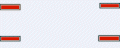 The space available between the four buttons is be used in several ways
allowing the better availment possible. Usually this space hosts a frame
with other commands inside or a single text or list.box if you needs it.
The frame may be located on right, on the left, the centre or may cover
all the existing space. (see below)
The space available between the four buttons is be used in several ways
allowing the better availment possible. Usually this space hosts a frame
with other commands inside or a single text or list.box if you needs it.
The frame may be located on right, on the left, the centre or may cover
all the existing space. (see below)
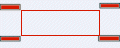
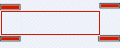
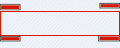 Your choice will allow also to leave one or two columns free between the
buttons on the corners to insert other objects or buttons or labels.
(see below)
Your choice will allow also to leave one or two columns free between the
buttons on the corners to insert other objects or buttons or labels.
(see below)
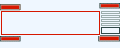 in the line between the bottom buttons we may put other objects that
may help the user to check the programs behavior, like informations,
labels, progress bars, flashing signals etc.
in the line between the bottom buttons we may put other objects that
may help the user to check the programs behavior, like informations,
labels, progress bars, flashing signals etc.
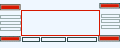 under the bottom buttons it is usually inserted a status bar or
a list box that if program allows a full screen viewing the list
may be hidden and shown only if some result must be view.
under the bottom buttons it is usually inserted a status bar or
a list box that if program allows a full screen viewing the list
may be hidden and shown only if some result must be view.
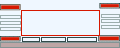 (as in this is the tipical Pointer interface)
Over the top buttons the space allows to insert a Menù bar while the last
space free between the top buttons allows you to inser the Program's Title
or if you like or need other buttons to obtain a Buttons Bar.
What is very useful, establishing space's use, standard positions and using
an an half screen form is the possibility to use the same interface using
the VB program or programming in VB or other languages for WinCE.
Many programs of mine use, with some adjustment, this kind of interface
so it is very easy to use each of them without learning anytime a new way
to use.
Add to the above that, if a program is multifuntional, only the command
that you need for the selected function may be shown into the central
frame, so you do not need to rember the use of a lot. of command.
If a program that is presented here does not have its own help, you may
read this text to understand how the user interface has been drawn.
These rules apply also to the Palm's screen, where is more necessary to
use the little space available efficiently.
This is a sample
(as in this is the tipical Pointer interface)
Over the top buttons the space allows to insert a Menù bar while the last
space free between the top buttons allows you to inser the Program's Title
or if you like or need other buttons to obtain a Buttons Bar.
What is very useful, establishing space's use, standard positions and using
an an half screen form is the possibility to use the same interface using
the VB program or programming in VB or other languages for WinCE.
Many programs of mine use, with some adjustment, this kind of interface
so it is very easy to use each of them without learning anytime a new way
to use.
Add to the above that, if a program is multifuntional, only the command
that you need for the selected function may be shown into the central
frame, so you do not need to rember the use of a lot. of command.
If a program that is presented here does not have its own help, you may
read this text to understand how the user interface has been drawn.
These rules apply also to the Palm's screen, where is more necessary to
use the little space available efficiently.
This is a sample  .
and (i hope) you will easyly understand in which way it may operate.
.
and (i hope) you will easyly understand in which way it may operate.
 back
to index
back
to index